

- Overview
- Transcript
4.1 Sprite Sheets
Lesson Notes * SpriteMe * Sprite Cow
Transcript Hi guys, welcome back to 30 Days to Your First Website Design, a Tuts+ Premium course. I’m Ian Yates and today we’re going to talk about sprite sheets.
We’ll begin as always by taking a quick look at what we’re going to cover in this video:
- First we’ll take a look at what sprite sheets are and where they’re used.
- We’ll then examine some of the advantages to using them
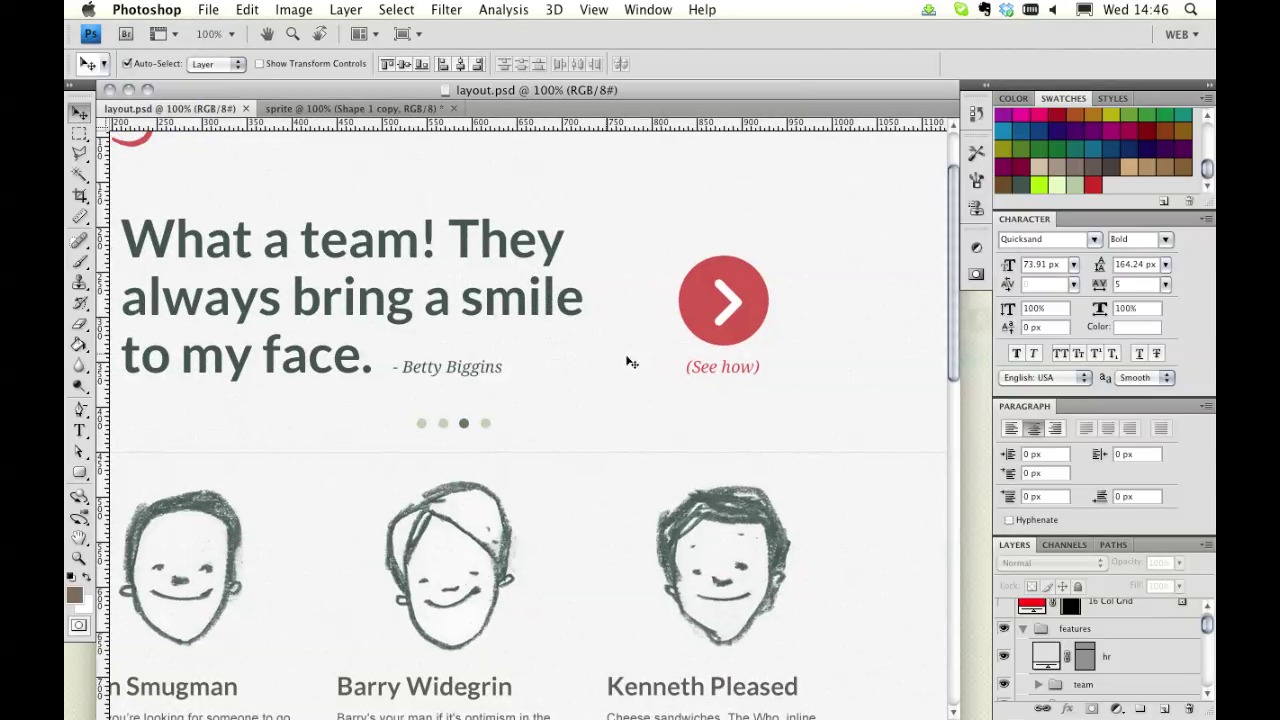
- Before we build our own sprite sheet from our psd layout.
- Lastly, as ever, I’ll ask you to complete a small task before we jump into the next video.
Now, you’ll be familiar with sprite sheets if you’re into your computer games, as that’s where they originate. A sprite sheet is a single bitmap image comprised of a number of graphic assets. Typically, in computer games, there’d be a sprite sheet for each element (a character for example) in its various states.
If you visit Angry Birds for Chrome and use the inspector to examine the elements, you’ll find that the game is built with a large number of sprite sheets. These sheets contain each character in all possible states, and it’s these sheets which are then used to animate the birds.
The same principle can apply to web design. You can place all, or a great deal, of your graphic elements on one bitmap, then use that sprite sheet to decorate your various elements. You might place background textures, icons, logos, and button images on your sprite sheet. Here’s the sprite sheet used by T heNextWeb. It’s a large, sparse png file, containing all the elements you’ll recognize from the site.
Here’s another example, it will hopefully be familiar to you. You can clearly see the Webdesigntuts+ logo, a couple of buttons, and icons, such as those used on the preview thumbnails to indicate a BASIX, or a PREMIUM tutorial. These sheets are used as the background image for various layout elements, we create the element, determine its dimensions, then apply the background image, specifying the coordinates on the sheet for the graphic we want to use. We’re effectively masking the sheet with our element.
Why Use Sprite Sheets? So that’s what a sprite sheet is, but why would you arrange your graphics like this instead of using a collection of small images?
The first advantage is filesize. Take a look at the Webdesigntuts sprite for example. Here you see the whole png saved at 41Kb, then there’s a folder with all the composite pieces saved as separate files – they total 78Kb. So even with all the additional whitespace we have on the sprite sheet, we’ve halved the cumulative size of the file. And this is just a small example. Your site may have much more in the way of graphics, in which case the saving would be greater still.
The second advantage is organizational – it’s far preferable to have one file, where all your images can be found. It makes for much less messy project folders, and it’s quicker if any editing needs to be done.
The third and possibly most crucial advantage is faster page loading time. We’ve already mentioned the file size, so that helps, but combining your graphics into just a few sprite sheets minimizes the http requests the browser has to make when loading your page. When loading, each time your web page requires an asset (a graphic, a css file, whatever) it makes a call to the web server which sends it back to the browser. There’s a limit to how many of these http requests to the same domain can occur simultaneously, so in cases where a lot of assets are needed you can get a bottleneck forming. By just requesting a single sprite sheet and committing it to your browser’s cache, you’re saving a ton of load time.
OK, enough talking, let’s get busy and take our own graphic elements to build a sprite sheet for use on our website. It’s also worth noting that there are a number of services available for automating some of this process. SpriteMe will trawl all the visual assets of any given web page, and compile them into a single sprite sheet for you.
Sprite Cow can take any sprite sheet, analyze it, and output the various coordinates and dimensions of each graphic element. This can save you some of the hard work when building your CSS file.
[Live screencast demo not available in transcript.]
Next Steps OK, it’s time for some further reading: Take a look at this video tutorial by Tom Green: How to Use CSS Sprites in Fireworks and Dreamweaver. It looks at using sprite sheets when working with Fireworks and Dreamweaver.
And before we jump into the next video, I have an assignment for you: I’d like you to repeat the process I just followed and build a sprite sheet of your own.
Next time on 30 Days to Your First Website Design we’re going to begin our project by looking at organization. I’m Ian Yates and from all of us at Tuts+ thanks for watching!
1.Introduction
1.1Introduction02:44
1.2What is Web Design?06:01
1.3Usability06:07
1.4Content05:20
1.5Goals05:27
2.Planning
2.1Three Don'ts of Design Theory02:48
2.2Inspiration05:45
2.3Style and Theme06:05
2.4Conceptual Sketching11:12
2.5Designing with Grids09:01
2.6The Anatomy of a Webpage05:44
2.7Whitespace05:03
3.Design Concepts
3.1Backgrounds and Textures10:18
3.2Navigation08:31
3.3Web Typography09:12
3.4Features Section16:04
3.5Contact Form12:25
3.6Footer Section09:05
3.7Prepping Your Design05:23
4.Site Elements
4.1Sprite Sheets14:07
4.2Project Organization04:47
4.3Code Editors14:45
4.4Web Standards Model16:25
4.5Semantics14:36
5.Prepping Your Design
5.1Further into CSS12:49
5.2Browsers16:50
5.3Behavior: jQuery slideshow12:43
5.4Form Validation13:23
5.5Cross Browser Testing11:21
5.6Google Analytics07:25
6.Conclusion
6.1Conclusion00:48





