

- Overview
- Transcript
3.6 Footer Section
Lesson Notes * Social Icons PSD * Footer Designs for Your Inspiration
Transcript Hi guys, welcome back to 30 Days to Your First Website Design, a Tuts+ Premium course. I’m Ian Yates and today we’re going to wrap up our PSD design by finishing off our footer. We’ll begin as always by taking a quick look at what we’re going to cover in this video:
- First we’ll ask ourselves about the role of footers in web design
- We’ll then take a look at a couple of examples
- Before diving back into our psd and finishing off our own footer
- Then, as ever, I’ll ask you to complete an assignment.
The footer of any given web page is the bit right at the very bottom. That doesn’t mean it ranks poorly against other sections of a web page – in fact, studies have shown that in terms of a user’s attention span on any one area of a page, the footer comes in a close second to the very first bit at the top. It makes sense too – as we’ve spoken about, a user will typically scan a web page, not absorb it in detail. If they’re scrolling their way to the bottom of the page, past everything else, and nothing specifically catches their attention, they’re inevitably going to end up at the footer, where they’re forced to stop and take a look. It’s therefore an ideal opportunity to encourage users into taking further action.
Designers use footers to display necessary information such as copyright details, but footers are also ideal for housing social links, contact information, newsletter sign up forms. They can be perfect for reminding users of something you were suggesting in your features area.
You can use a footer to express a final bit of personality before the page ends: PooganSporch. Introduce users to an intriguing fact about your firm: Dribbble. Or how about additional navigation? They can be a way of saying “OK, so you didn’t find what you were looking for, try one of these links.” Mozilla. Or they can simply be a subtle way of sealing the rest of your page: Headlamp Creative.
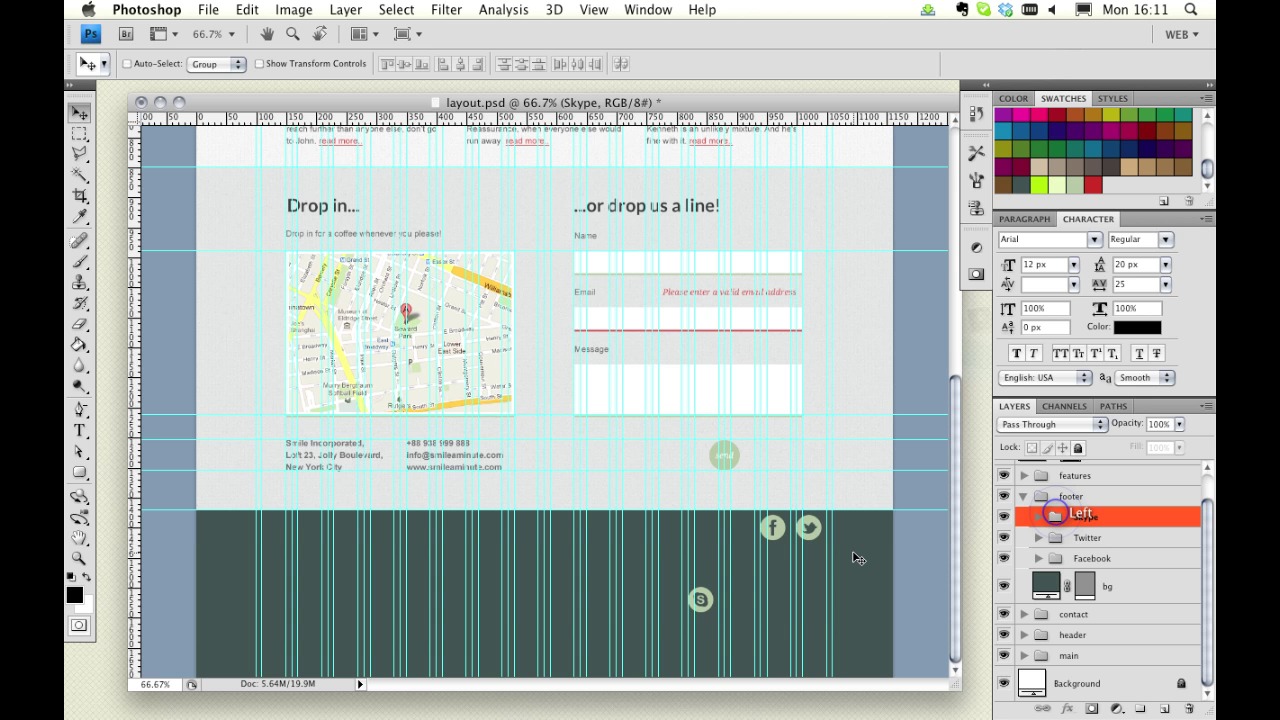
We’re going to opt for the last example in our own design. We don’t need out footer to contain much information; we just want to leave some copyright details, and some subtle, yet striking social links. It should compliment our design quite nicely.
Let’s open up our PSD and remind ourselves where we were.
First off, we need to get ourselves some social icons. You’ll find these freebies by Umar Irshad ideal – check out his dribbble pageor go directly to designmoo.com to download the PSD. We’re not going to use them in their current state, but they’re an ideal starting point and they’re perfectly scalable too.
[Live Photoshop demo not included in transcript.]
OK, it’s time for some further reading: nothing too heavy, but you might want to take a look at this roundup of inspirational footer designs on NOUPE.com And before we jump into the next video, I’d like you to get your hands dirty and finish building up the psd with our footer.
Next time on 30 Days to Your First Website Design we’re going to begin transforming our PSD into working browser magic. We’ll take a look at prepping our design. I’m Ian Yates and from all of us at Tuts+ thanks for watching!
1.Introduction
1.1Introduction02:44
1.2What is Web Design?06:01
1.3Usability06:07
1.4Content05:20
1.5Goals05:27
2.Planning
2.1Three Don'ts of Design Theory02:48
2.2Inspiration05:45
2.3Style and Theme06:05
2.4Conceptual Sketching11:12
2.5Designing with Grids09:01
2.6The Anatomy of a Webpage05:44
2.7Whitespace05:03
3.Design Concepts
3.1Backgrounds and Textures10:18
3.2Navigation08:31
3.3Web Typography09:12
3.4Features Section16:04
3.5Contact Form12:25
3.6Footer Section09:05
3.7Prepping Your Design05:23
4.Site Elements
4.1Sprite Sheets14:07
4.2Project Organization04:47
4.3Code Editors14:45
4.4Web Standards Model16:25
4.5Semantics14:36
5.Prepping Your Design
5.1Further into CSS12:49
5.2Browsers16:50
5.3Behavior: jQuery slideshow12:43
5.4Form Validation13:23
5.5Cross Browser Testing11:21
5.6Google Analytics07:25
6.Conclusion
6.1Conclusion00:48





