

- Overview
- Transcript
3.2 Create Some Sketches
Before jumping into Photoshop, it's really handy to have some sketches of what your future design will look like. In this lesson, I'll show you a very simple tool for that.
1.Introduction
1.1So, You Wanna Be a Web Designer?01:15
2.Web Design Fundamentals
2.1What is Web Design?04:03
2.2A Brief History of the World Wide Web03:32
2.3What is HTML?14:10
2.4What is CSS?14:17
2.5Tools of the Trade06:30
3.The Design Stage
3.1Always Plan Ahead04:23
3.2Create Some Sketches10:42
3.3Introduction to Photoshop09:30
3.4Photoshop Design: Homepage Header12:01
3.5Photoshop Design: Portfolio Area (Part 1)11:04
3.6Photoshop Design: Portfolio Area (Part 2)07:21
3.7Photoshop Design: The Portfolio and About Pages07:45
3.8Slicing the Images05:09
4.The HTML Stage
4.1HTML: Homepage (Part 1)08:11
4.2HTML: Homepage (Part 2), Portfolio and About Page09:46
5.The CSS Stage
5.1CSS: Reset CSS and Typography Rules12:41
5.2CSS: General Positioning09:01
5.3CSS: Page Headers10:20
5.4CSS: Final Touches10:34
6.Conclusion
6.1What You've Learned01:30
3.2 Create Some Sketches
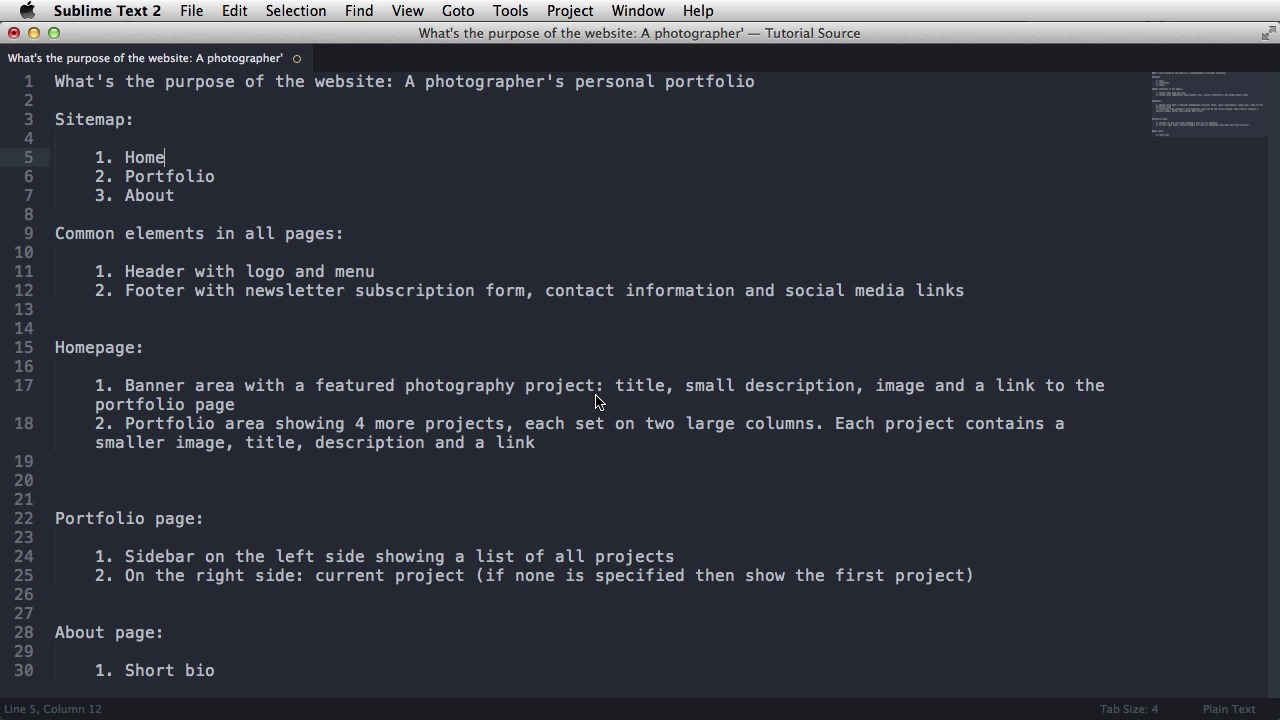
With the planning stage complete, it's time to grab a pen and a piece of paper and sketch how your website will look like. This stage is called a wire frame. And it's purpose is to determine the position of the elements in the page. Some of the copy you're gonna write, and give you an overall look on how the final product will look like. Now, I'm gonna use a specialized app because I want you to see what I'm doing. The app is call Mockups and you can have two projects for free. Beyond that, you have to pay a subscription. But if you're just starting out, this is the perfect app to use. So, let's begin. So, you'll go to the main menu, new project, call it portfolio. You can select if it's a private or a public, currently the private needs a premium subscription. So we're gonna keep it a public, and for font style, I'm gonna choose Sans Serif. Create project, and right off the bat you can do some adjustments to, to your page. So you can click on settings, you can select the width, the height of your page, and also if you want to display some sort of grid. It even has support for the 960 grid system. But this is more advanced stuff. So, for now, just select no grid. And make sure snapped objects and show smart guides is checked. Let's start with the first thing on our page. We're gonna go back to the text document. We wrote in the previous lesson, and go to the common elements in all pages. The first one is header with logo and menu, so let's do that. So the first one is logo, i'm gonna do a simple label here. Which i'm gonna call logo, and place it somewhere around here. Next is the menu, so i'm gonna grab the link bar. Double click to edit. And the menu is home, portfolio, about. [BLANK_AUDIO] Okay, position that. Notice the pink line. That's called a smart guide. It allows you to align elements. And that is the header basically. Now on the homepage. Now let's make sure we rename this to homepage. On the homepage we also have this banner area with the featured photography project. So let's continue with that one. I'm gonna do an image actually. A place holder image which I'm gonna make it full width [BLANK_AUDIO] Something like that and on top it I'm gonna place my heading, my description and my link. So heading one, this is the project name. Roughly position it in the middle. Notice that when you're doing wire frames you don't have to align elements perfectly. It's just a sketch really. Next put in a paragraph. With some centered text. [BLANK_AUDIO] And then I'm gonna do a button. And the button is gonna say something like see details. Let's give that a different color like. This color. All right and that's the header. Next on our home page is a portfolio area showing four more projects. Each one is set on two large columns and each project contains a small image, title, description and link. I'm gonna start with an image again. [BLANK_AUDIO] So an image, gonna make it about half. [BLANK_AUDIO] The width of the page. And then a heading changes size to about 20 pixels. [BLANK_AUDIO] Project, [UNKNOWN]. [BLANK_AUDIO] Project name. [BLANK_AUDIO] Yep, small description and a link. That's basically gonna say details. Okay? Now you can group this by selecting these elements and hit Cmd + G or Ctrl + G if you're using Windows. And I'm gonna copy it and paste it. [BLANK_AUDIO] And align it something like this. [BLANK_AUDIO] Copy and paste again and create the four projects. Okay, great. Finally you gotta do the footer. And the footer is the other common elements for all pages. So we have a section with a newsletter form, and then contact info and social media links. So, I'm gonna do a rectangle, no border, let's fill it with something, a darker color. [BLANK_AUDIO] Okay, something like this, and then a heading. Make it about 16 pixels, white. It's gonna say, subscribe to news letter. And that's in paragraph, some text. And this is gonna say, wanna see my latest photos? Enter your email below, and I'll send you one email a month with the latest updates. Next let's do a text input and a submit button, and the button should say subscribe. The next section, copy this, will be get in touch. So this is the contact section, and here, you can just put an address or address line one. Maybe address line two and then email address. Followed by some social media links. Now for that, I'm gonna use some icons. [BLANK_AUDIO] I'm gonna use a Twitter icon and a Facebook icon. [BLANK_AUDIO] Okay. And finally. Some copyright information on the bottom. Great. So that is the wire frame for the home page. And this is what you'll be basing your design on. Next up duplicate. And we're gonna name this, Portfolio. All right. Now, for the portfolio page, we have a sidebar on the left with a list of projects and the current project on the right side. So we're gonna delete this and this, make this a bit smaller. I'm gonna call this portfolio. Gonna delete these four, and I'm gonna do the side bar there is a control here called. Let's see if I find it, there it is. Vertical arrow menu. [BLANK_AUDIO] And this is basically our sidebar. Now this is purely conceptual so it's not gonna look like this, but the idea is to have a list on the left side which can be clicked. And various elements can be selected. Okay, on the right side, we have a heading with basically the project title. And then the paragraph, the description paragraph. Something like that and followed by a few images. [BLANK_AUDIO] [SOUND] And then, there is the footer, which is a common element. Okay? That's it for the portfolio page. And finally, duplicate this again. Call it about. Okay? [BLANK_AUDIO] Get rid of this, get rid of this. The images. And on the about page, I'm just gonna have. Some simple text on the center of the page, which can be a short biography. Now also we're gonna move the [UNKNOWN] to the top. Just like that. So once you have all the wire frames done you can go to the main menu, export and you can export a PDF, PNG, a retina PNG if you want and also to several locations. I'm gonna choose a PDF. Export all of my pages. And I'll export to a location on my computer. I'm gonna choose my project folder, personal portfolio.pdf. I'm gonna save this, replace and there it is. Now let me just resize this. And those are the wire frames nicely tucked in a PDF so you have faster access to them when when designing. All right, now that the wire frames are complete, you can move on to the next stage which is the Photoshop design. That's coming up next.





