

- Overview
- Transcript
4.1 HTML: Homepage (Part 1)
In this first part of the HTML stage, we’ll write most of the code for the homepage.
1.Introduction
1.1So, You Wanna Be a Web Designer?01:15
2.Web Design Fundamentals
2.1What is Web Design?04:03
2.2A Brief History of the World Wide Web03:32
2.3What is HTML?14:10
2.4What is CSS?14:17
2.5Tools of the Trade06:30
3.The Design Stage
3.1Always Plan Ahead04:23
3.2Create Some Sketches10:42
3.3Introduction to Photoshop09:30
3.4Photoshop Design: Homepage Header12:01
3.5Photoshop Design: Portfolio Area (Part 1)11:04
3.6Photoshop Design: Portfolio Area (Part 2)07:21
3.7Photoshop Design: The Portfolio and About Pages07:45
3.8Slicing the Images05:09
4.The HTML Stage
4.1HTML: Homepage (Part 1)08:11
4.2HTML: Homepage (Part 2), Portfolio and About Page09:46
5.The CSS Stage
5.1CSS: Reset CSS and Typography Rules12:41
5.2CSS: General Positioning09:01
5.3CSS: Page Headers10:20
5.4CSS: Final Touches10:34
6.Conclusion
6.1What You've Learned01:30
4.1 HTML: Homepage (Part 1)
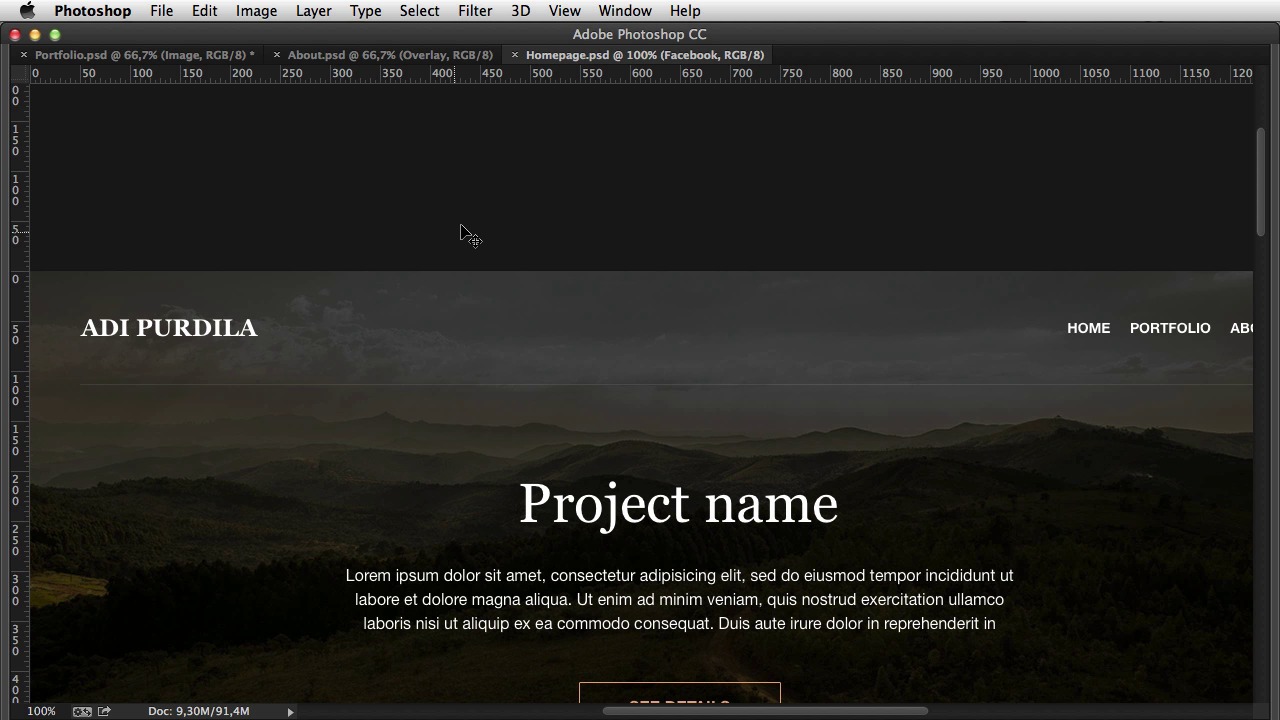
Welcome back. In this lesson I'll start writing the HTML for our page. So let's begin. I'm gonna use Sublime Text2. This is my current. Code editor, but you can use whatever you want really. I'm gonna start with this. DOCTYPE html. Next I'm gonna start with the html tag, and I'm also gonna close it. Then it's the head tag and inside, I'm gonna have a title, Portfolio theme. And then, there's the body. Okay. So. Before I begin I just wanna point out one thing. I'm gonna use a plug in to write code really fast because I don't want these videos to take, like, forever. So what I recommend is that, you write the code yourself and not use this plugin. That way you'll learn the code much, much better. The first thing, is this header. This header slash banner thingy. So I'm gonna start with the HEADER tag, and I'll give it a class of header-homepage. Inside the content is centered in this 1200 pixel wide container. So I'm gonna create the div with the class of container, and right after the closing div tag, and I strongly recommend you, you learn to do this, I'm gonna place. A comment signaling or showing me where that tag will end. So in here I'm gonna say end container. This way it's much easier for you to scan the code. Especially if you have. Lots of different lots of nested elements. It's really easy to, to get lost. But just by marking the end of a certain div, you make sure that your code is easier to read. Now, inside this, I'm gonna have an area, or a section which only contains the logo and the menu. So, I'm gonna do another div with the class of top container. Again, I'm gonna add a comment. And inside I'll start with the logo. So I'll do an anchor tag which will link to the home page to index html. I'm also gonna give it a class of logo, and inside. We have an image. We're gonna grab the logo.png that I exported in the previous lesson. And that's it, basically, for the logo. All right next is the MENU. [BLANK_AUDIO] For the menu, I'm gonna use the nav tag and an unordered list. And that will contain three list items, each one having an anchor tag. So, index.html, oops. Next one will go to portfolio.html, and final one to about.html. Actually I'm gonna say Home, Portfolio and About. Now these, html files. Our pages on our website. One for the, the homepage. The index. One for portfolio, and one for the about page. And that's pretty much it for this top container. Now we do have a separating line right here. And I'm gonna do an hr for that. And I'm gonna give it a class of header-hr, hr is horizontal rule if you remember from the previous lessons. Next we have the header contents, which holds this heading, paragraph and button. So I'm gonna create a div, with a class of header-contents. And inside, I'm gonna start with an h1 that says Project title. Next, we have a paragraph. I'm just gonna paste in some lorem ipsum, and then we have this button. So, I'm gonna do another paragraph with a button, with a, an anchor tag on the side. It's gonna link to portfolio.html. It's gonna say, See Details. And, it's gonna have a class of btn. All right, so let me just save this. And see what we got in the browser. So we have the logo here, you can't see it because it's white. Menu. HR and the project title, description and button. Now these are not styled yet. We're only seeing the backbone, the, the skeleton behind the, behind the web page. Next is the portfolio section. Which basically is a repeat of the, of the same element. This this group here with the image, title and description portfolio area. I'm gonna do a div class container that will center, the elements in the page and container. Now we have two columns here. With an element on each one. And we can go about this in a few different ways, but I think the easiest one, the easiest way, is to represent a row of elements and each row has two columns. So I'm gonna creative a div with the class of row, and then inside create div with the class of column half. Now this column half will have an image which should be a link as well, because you can click it. And it will take you to portfolio.html. The image should link to hpportfolio1.jpg and the alt is gonna be portfolio. Okay, next up is the title. I'm gonna use an h3 prior to this, and then a paragraph. Paste in some dummy text. And finally another paragraph with an anchor tag. That's gonna link to portfo, portfolio.html as well. See details. All right now, here I can add a small arrow with this character right here. So, if I refresh, I get the image. I get the title, description, and link. I'm just gonna copy this. The column half, and paste it again here. And then I'm gonna duplicate the row, the entire row and paste it one more time. [BLANK_AUDIO] All right so, refresh. We now have four elements. All right. Now I'm gonna stop here for this lesson. We only have to do the footer. But, I'll do that and much more in the next lesson. So I'll see you there.





