

- Overview
- Transcript
5.2 CSS: General Positioning
In this lesson, I'll write some styles that affect the overall positioning.
1.Introduction
1.1So, You Wanna Be a Web Designer?01:15
2.Web Design Fundamentals
2.1What is Web Design?04:03
2.2A Brief History of the World Wide Web03:32
2.3What is HTML?14:10
2.4What is CSS?14:17
2.5Tools of the Trade06:30
3.The Design Stage
3.1Always Plan Ahead04:23
3.2Create Some Sketches10:42
3.3Introduction to Photoshop09:30
3.4Photoshop Design: Homepage Header12:01
3.5Photoshop Design: Portfolio Area (Part 1)11:04
3.6Photoshop Design: Portfolio Area (Part 2)07:21
3.7Photoshop Design: The Portfolio and About Pages07:45
3.8Slicing the Images05:09
4.The HTML Stage
4.1HTML: Homepage (Part 1)08:11
4.2HTML: Homepage (Part 2), Portfolio and About Page09:46
5.The CSS Stage
5.1CSS: Reset CSS and Typography Rules12:41
5.2CSS: General Positioning09:01
5.3CSS: Page Headers10:20
5.4CSS: Final Touches10:34
6.Conclusion
6.1What You've Learned01:30
5.2 CSS: General Positioning
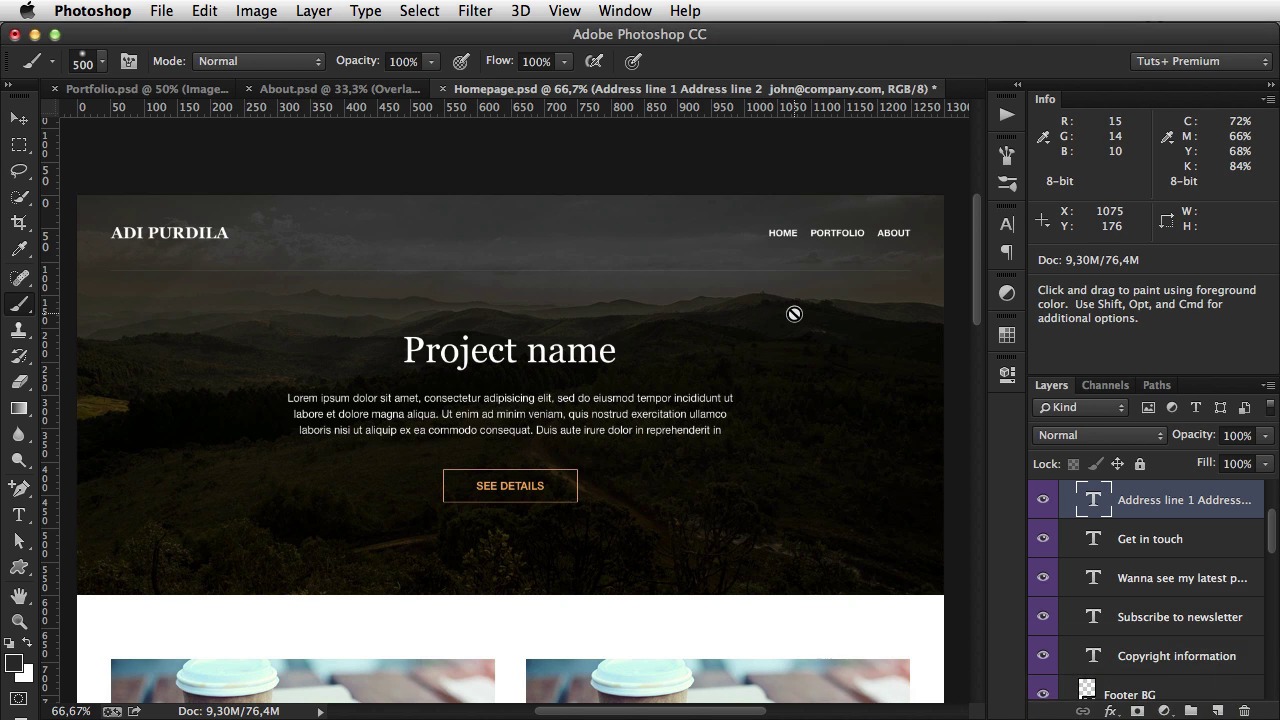
Welcome back. In the previous lesson, I started writing the CSS for this page, and after applying a reset and some general typography rules, this is the result. Now, I'm gonna move on to the rules that affect the overall layout. So, let's have a look at the p, at the HTML, sorry. We have a few classes that repeat themselves, like container, like row, column. So let's let's see what they're all about. First of all, container. The container class has the role of aligning the contents in the page and confining it in this 1200 pixel box. So, the rule is actually pretty simple. Let me make some room here. Add a small comment. I'm gonna say general layout rules. Container. I'm gonna start with this, with 1200 pixels. Okay? And just so we can see the container, i'm gonna set it's background color to red. All right and so that is the container element. Now to center it on the page, i'm gonna use the following technique. Margin zero, top auto, right zero bottom auto left. Now, wha, what this means is the auto values will automatically be determined by CSS to be equal. And that means, that container will be positioned on the center of the page. So let me refresh, and there it is. Now, this declaration can be reduced to this one. So if you put zero auto, it basically means zero for top and bottom, auto for left and right. This is how this declaration works. And the same goes for padding, the same goes for border. And some other properties. Now, I'm gonna remove this background color, and I'm gonna move onto to the columns. Now the columns have the class of column half, and they have a width each of 576 pixels. Now, if I refresh this, you won't see any change. But, if I do float left, you're gonna see a change. Now the columns are not stacking vertically. Instead or on the same line. But there are also a few problems here because the footer, the copyright information is now all the way here on the top. And this is a, a frequent problem when you float elements. Now there are a few ways to fix this. Probably the easiest one is to target the row. So if you remember the row is the div, the parent div of the columns, and set overflow to hidden. This is the easiest way To clear floats, so now refresh, and the elements are back in their place. And look, we have two columns. That was really easy. Now let's put some distance between these two. For that I'm gonna use the margin. So I'm gonna say margin top 0. Margin right, 12 px, 24 on the bottom, and 12 again on the left. Okay. So that means. Let me show you. Yeah. Column F, you see those orange lines on either side of the image? Well, that's the padding. That's what creates the separation between columns. Let's move on and start styling some of these page headers. And if we take a look at the original PSD, we can see this background image right here. And. In each HTML file, we set a header with a different class. Header home page, header portfolio, and header about. So let's target those. Header home page, the cool thing about CSS is you can use images as backgrounds. So we would say background, url and then you would do this images, headerhomepage.jpg. I'm just gonna write this and explain afterwards. [BLANK_AUDIO] Okay, so, lets see if it works first. And it does. Now, url. This basically tells you where to load the image from. In my case, its images, which is this folder, and header homepage.jpg, which is this one. But notice these two dots and slash in front of the images folder. Now that's to tell the browser to look one directory up, so basically, we have the CSS file. If I were to do this, CSS or the browser will look for this image in CSS/images/header-homepage. But if I do this, I basically tell the browser to go up one level and search in that folder. So, up one level in the CSS folder means the exercise folder, and then go to images folder, header, homepage. I hope that makes sense. Now these two values refer to the position for the image. 0 0 basically means the image is positioned in the top left corner. No-repeat means the image, the background image won't repeat itself. Now I'm gonna give this a height of 600 pixels. And save, refresh. And now the entire image is being shown. But the problem is this image has. A fixed width. If I were to resize the browser to make it bigger. Well, I don't know if you can see it on the screen but, there is quite a big gap here. So what do you need to do is set the background-size to 100%. And this will effectively shrink. Or max the image bigger if it's needed. So now refresh, and if I shrink, notice the background image shrinks, and if I make it bigger, it becomes really large. So that's exactly what we need. All right now taking a look back at the PSD, we notice. There is quite a big gap between this header and the portfolio area. So I'm gonna duplicate that by saying margin-bottom 96 pixels. I refresh and there it is. All right, now quickly I'm gonna duplicate this and target the other header images. So the first one is header portfolio. Images header portfolio here. This time the size is 330 pixels. And header about here. All right, so now, if I go to portfolio, well if I go to portfolio nothing happens, because the portfolio doesn't have the style sheets yet, so why don't I do that. [BLANK_AUDIO] Include the style sheets in this page, and also in this page. [BLANK_AUDIO] 'Kay, refresh, there's the portfolio. And there's the about page. All right, I'm gonna end this lesson here. Next time, I'll finish this this banner slash header. And we'll see where we go from there.





