

- Overview
- Transcript
4.2 HTML: Homepage (Part 2), Portfolio and About Page
In this lesson I'll write the HTML code for the rest of the pages.
1.Introduction
1.1So, You Wanna Be a Web Designer?01:15
2.Web Design Fundamentals
2.1What is Web Design?04:03
2.2A Brief History of the World Wide Web03:32
2.3What is HTML?14:10
2.4What is CSS?14:17
2.5Tools of the Trade06:30
3.The Design Stage
3.1Always Plan Ahead04:23
3.2Create Some Sketches10:42
3.3Introduction to Photoshop09:30
3.4Photoshop Design: Homepage Header12:01
3.5Photoshop Design: Portfolio Area (Part 1)11:04
3.6Photoshop Design: Portfolio Area (Part 2)07:21
3.7Photoshop Design: The Portfolio and About Pages07:45
3.8Slicing the Images05:09
4.The HTML Stage
4.1HTML: Homepage (Part 1)08:11
4.2HTML: Homepage (Part 2), Portfolio and About Page09:46
5.The CSS Stage
5.1CSS: Reset CSS and Typography Rules12:41
5.2CSS: General Positioning09:01
5.3CSS: Page Headers10:20
5.4CSS: Final Touches10:34
6.Conclusion
6.1What You've Learned01:30
4.2 HTML: Homepage (Part 2), Portfolio and About Page
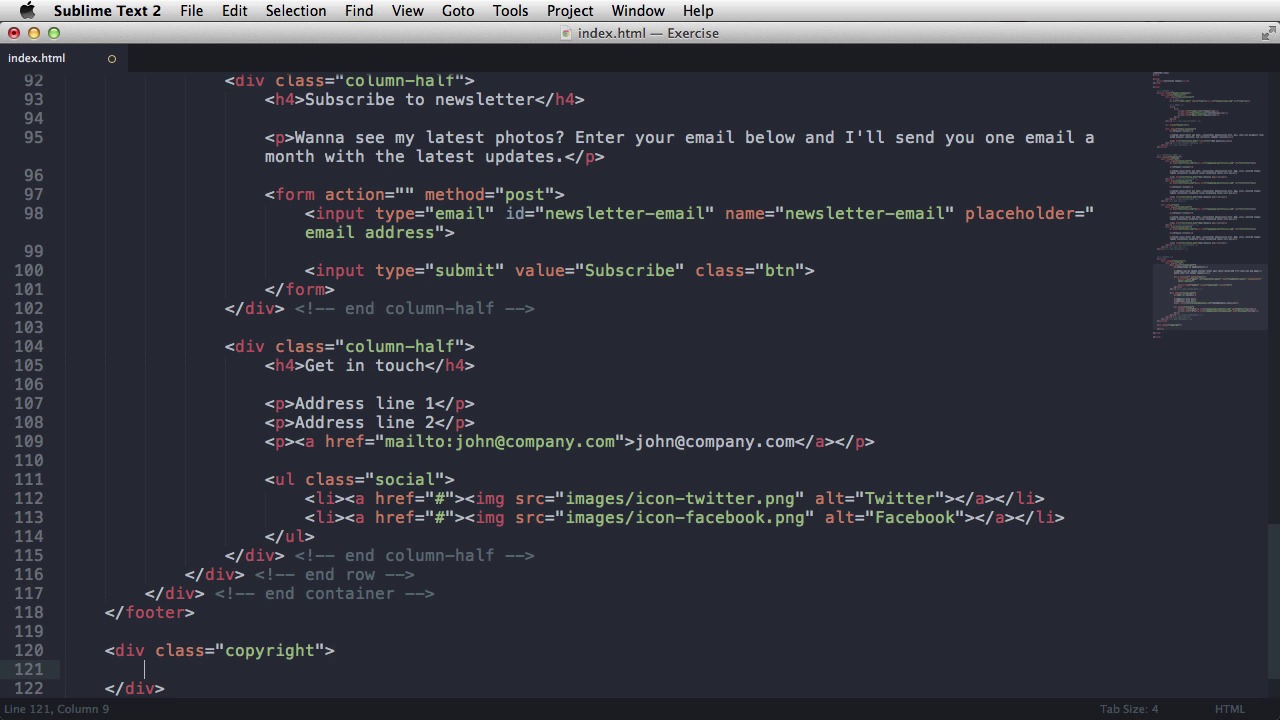
Welcome back. This right here is the result of what I wrote in the previous lesson. So basically, the HTML for almost the entire homepage. I just have to write the code for the footer. So, the footer starts with a dark background, and then it's followed by. This area that's centered on the page. So, going back here, footer. And I'll use the actual footer tag, that's a valid valid tag. And then the div class container for aligning the elements in the center of the page. And then, we have two columns just like in the portfolio area. So div class row and inside div class column half. Now, we have a title. So, I'll use an h4 for that. Subscribe to newsletter. And then, there's a paragraph that says that. And then, there's a form with an input and a button. So the form, goes something like this, form [BLANK_AUDIO] Action, you can leave it blank for now. Method, we're going to say post. There are two types of methods, post or get. But usually when you have a subscribe form ,you're going to use a post method. Now the input, the stuff where you type your email. goes like this. Input, type, email, and we're gonna give it an id newsletter email. I'm gonna give it a name, newsletter email. And I'm gonna do. Placeholder. This is an attribute that will display a text- let me show you- will display a text in here that will go away when you type. But when the field is empty, the text is there. You can use it. To tell the user what kind of information you want in that field. And that uses the placeholder attribute. Next, we have that that button. So, I'm gonna do input type submit. This this input type will create a button that will submit the form or will send. The form information. So value is gonna be subscribe. The value represents the text that's gonna be written in the button. And for class, we're gonna give it the same class as this button in the header. Okay, let's refresh. And there it is. The subscribe button. Next we have another column-half. And in here it says get in touch with address, email and two icons. So, h4. Get in touch. In here I'm gonna have a link for the,. The mail address, and it's gonna say john@company.com. And to make that link open up an email editor when you click it,. You can say mail to john at company dot com. Finally, for the two icons here, I'm gonna use an unordered list with the class of social And then I'm gonna create the list item with an anchor tag, with an image that will go to images icon. Twitter.png. Alt's going to be Twitter. Duplicate this and do one for Facebook. Refresh, and there it is. List with the two icons. Now, finally, the only thing left to do is the copyright, the copyright area. So create a div with a class of copyright and a paragraph inside, copy with generate that, that C sign. That means copyrighted basically. 2014 and my name. Okay doke. Let's see it. And there it is. Okay, so that's the HTML for the home page. The thing is, now when you click Portfolio, it. It says that the webpage is not found, and the same goes for about. And that's because the other two pages aren't, created yet. But we can create them right now. This will take very little time. So, go back here and copy the entire code. Then, create a new file by hitting Alt+Cmd+N. I'm gonna call this portfolio .html. Paste it. Save. And, we're gonna change a couple of things.First one, instead of header homepage, it's gonna be header portfolio. For header contents, I'm just going to leave this one, so delete the paragraph and the button. So portfolio. And then in the portfolio area, the also a few changes. For example, we don't have a second row. And inside the row, we're gonna have some different classes. First of all. We're gonna have a sidebar for let's see. It's for this area here on the right. On the left. Sorry. And the sidebar will have an h4 that says Photography. Projects. And then its going to have a list of project names. Un-ordered lists. We're going to have a list item with an anchor tag. Let's make those four list types. We're going to put a hashtag into each riff for now. It basically means going nowhere. And fill this in with some data. Now this first project is the active one. So we're gonna give it a different class to the parent list item. Active. Next on the right side we have the area where the project title, paragraph. And the two images. I'm gonna create a div with a class of main-content. I'm gonna start with an h3, Project name. And then paragraph with some lorem ipsum. And then finally an image. [BLANK_AUDIO] And maybe two images actually. So, now if I go to portfolio, it's gonna open up my portfolio page. There it is, the two images. The footer stays t he same because it's a common element. The header stays the same, but notice my sidebar here and my main content over here. Let's quickly do the about page, so copy all this, about.html. Pace that changed this from header portfolio to header about. The title of the page. Okay. Delete this contents, so call this about. And the about page only has some text centered in the page. So what I'm going to do is say. Container, center and then add a few paragraphs. So now this is the about page. And that's it for the HTML. This is how our pages look like in the HTML. And as you can see it didn't take very long to. To build these pages. Now these look kind of awful right now so we need to write the CSS for them and that's coming up next.





