

- Overview
- Transcript
3.7 Photoshop Design: The Portfolio and About Pages
In the final part of the design process, we’ll finish designing the portfolio and about pages.
1.Introduction
1.1So, You Wanna Be a Web Designer?01:15
2.Web Design Fundamentals
2.1What is Web Design?04:03
2.2A Brief History of the World Wide Web03:32
2.3What is HTML?14:10
2.4What is CSS?14:17
2.5Tools of the Trade06:30
3.The Design Stage
3.1Always Plan Ahead04:23
3.2Create Some Sketches10:42
3.3Introduction to Photoshop09:30
3.4Photoshop Design: Homepage Header12:01
3.5Photoshop Design: Portfolio Area (Part 1)11:04
3.6Photoshop Design: Portfolio Area (Part 2)07:21
3.7Photoshop Design: The Portfolio and About Pages07:45
3.8Slicing the Images05:09
4.The HTML Stage
4.1HTML: Homepage (Part 1)08:11
4.2HTML: Homepage (Part 2), Portfolio and About Page09:46
5.The CSS Stage
5.1CSS: Reset CSS and Typography Rules12:41
5.2CSS: General Positioning09:01
5.3CSS: Page Headers10:20
5.4CSS: Final Touches10:34
6.Conclusion
6.1What You've Learned01:30
3.7 Photoshop Design: The Portfolio and About Pages
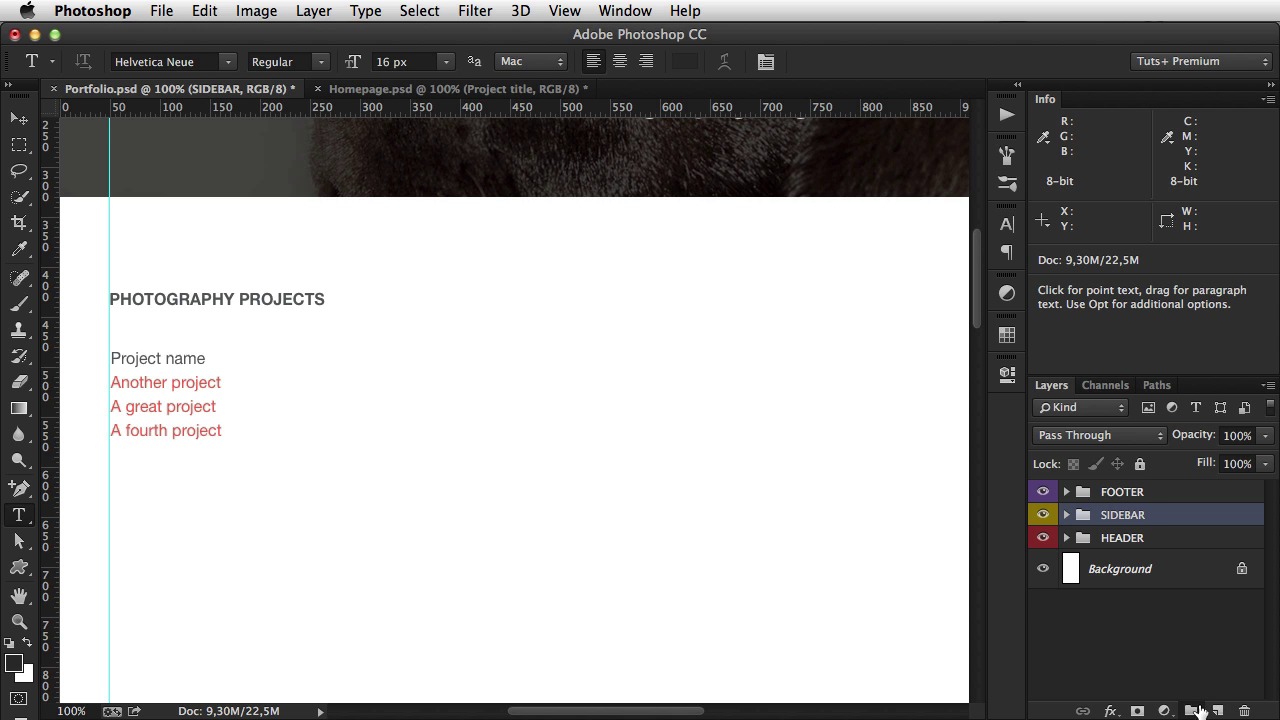
Welcome back. In the previous lesson, I finished designing the home page. This is what we got. Now, it's time for the portfolio page. And as you can see from the wire frame, we have a few common elements. The logo and the menu, for one, and then, on the very bottom of the page, there's the footer. So, we're gonna keep these two elements, and I'll go back to Photoshop, and I'm gonna hit Image> Duplicate. And I'm going to call this, Portfolio. Hit OK, okay? And in here I'm gonna delete the portfolio area. Okay? So we're left with the header and the footer. Now, the header, is a bit different from the rest of from the home page. It's not as tall as the home page. In fact, it's only about 330 pixels in height. So, what I'm gonna do is grab another image, that will serve as the header image, and it's it's an image of this doggy here. Hit C for the crop tool. 1300 by 330 pixels. So I'm just gonna crop an image like this. Cmd+A, Cmd+C to copy. And then, right here, Cmd+V to paste. I'm gonna move it to the top, like that. I'm gonna delete the former background image. Resize this overlay to 330. And delete this text, delete the BTN, and here I'm just gonna sa, portfolio. All right. So I'll close this. Save. And you can close the home page as well. So,the very first thing you gotta do, is the sidebar on the left side. So, I'm gonna grab this text right here. I'm gonna copy. And inside the layers, I'm gonna create a new group called Sidebar. Give it a color. Yellow, for example. Bring up the guides, whoops. [BLANK_AUDIO] We're gonna call this Photography Projects. [BLANK_AUDIO] 96 pixels from the top, and then, with the text tool, click and drag. And make this about 400 pixels. And here I'm gonna paste a list of projects, basically. So. Okay, now this will have a regular font size, and no uppercase. And also, most of these will be, links. This first one, that isn't a link, will be the active project, or the current project. Push it down 48 pixels. Next up, is the project title, description, and two images. So, let me actually open the home page file. So that I can grab some of this text, for example, the project title. Create a new group. Call it Content, green, for example. Okay. So, project title, this is 400 pixels in width. So, I'm gonna measure 400 pixels, plus another 48 pixels for the distance, and I'm gonna drag a guide. And this is where my content should start actually. So basically, I created two columns. So project title, and that's the text. Then I'm gonna copy. [BLANK_AUDIO] 24 pixels. And now, some images. Now for for these images, we're gonna need something like 752 by, by 300, I think would work just fine. Grab some images. This one for example. There we go. [BLANK_AUDIO] Okay, measure 48 pixels from the text. And then, simply duplicate this. Leave a gap of about 24 pixels between them. And that's it. Call this image, Image. And bring the footer up. [BLANK_AUDIO] And push it down again by 96 pixels. Okay. And that is the portfolio page. Now, very quickly, close this. Go to Image> Duplicate. Call it About. Change the text here, and also change the background image, and for this background image, I'm gonna use something like this,1300 by 330. [BLANK_AUDIO] And we're gonna delete the sidebar. Cuz we don't need it. We're gonna delete these two images. I'm gonna delete this. And we're we're gonna make this text centered. Align it on the page. Let's see, 96 pixels. And bring the footer up. [BLANK_AUDIO] And then again measure 96 pixels. [BLANK_AUDIO] And that's it basically. Now, that's the about page. Now, since we have all three pages designed in Photoshop, it's time to cut all of the images from them, and start writing the HTML and CSS, and that's coming up in the next lesson





