

- Overview
- Transcript
2.1 Captions
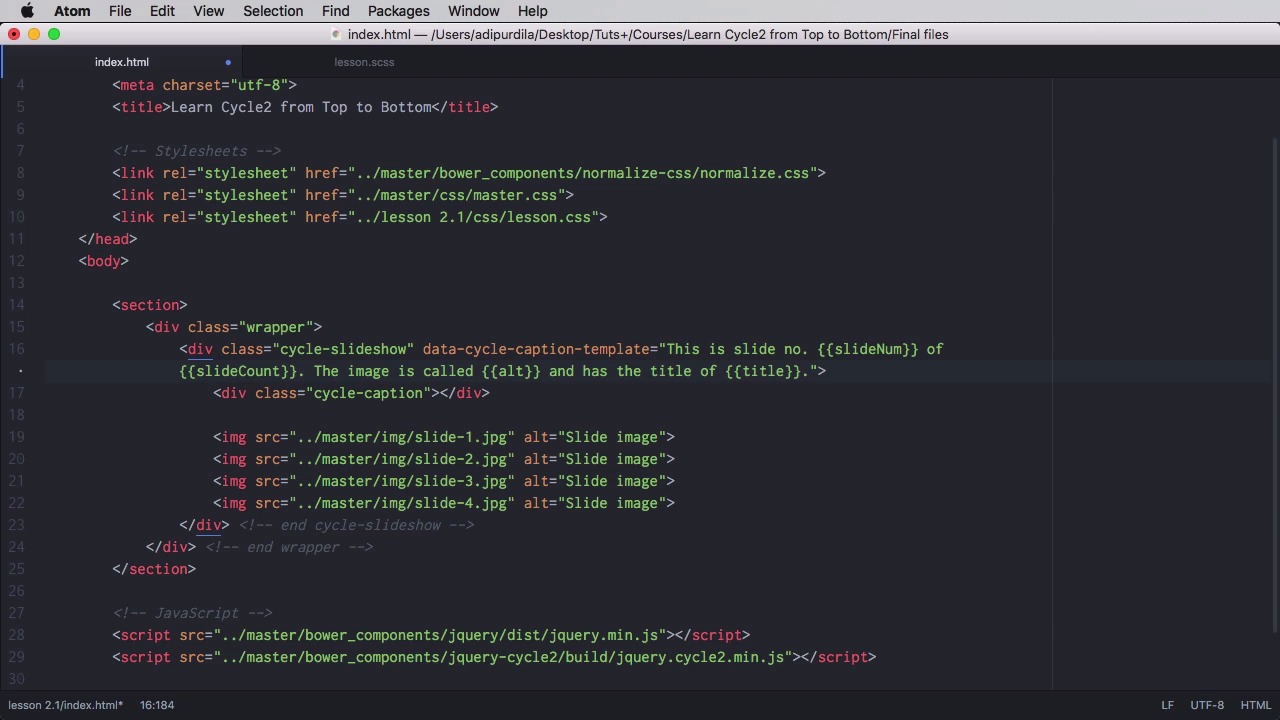
Captions can show pretty much anything you want: the current slide number, the total number of slides, an image title or alt and so on. You have a lot of freedom when it comes to captions, so let’s take a look at some examples.
1.Introduction
1.1Welcome00:34
1.2Why Cycle2?02:22
1.3Plugin Installation and License01:30
1.4A Basic Example03:19
1.5Settings Options04:42
2.Basic Usage
2.1Captions04:58
2.2Using Navigation Controls04:42
2.3Slideshow Effects and Options04:36
2.4Continuous Slideshow03:49
2.5Using Overlays04:32
2.6Using Pagers08:34
2.7Using Non-Image Slides03:34
3.Advanced Usage
3.1Auto-Height06:27
3.2Image Loader05:19
3.3Progressive Loading08:54
4.Optional Plugins
4.1Carousel09:04
4.2Flip and Shuffle05:53
4.3ScrollVert and Tile03:29
4.4Caption2 and Center05:55
4.5Swipe02:12
4.6YouTube05:22
5.The API
5.1Options09:45
5.2Commands07:15
5.3Events04:09
5.4Cycle States and Hash04:51
5.5Template Customization02:27
6.Conclusion
6.1Final Words00:42
2.1 Captions
Captions can show pretty much anything you want. They can show the slide number, the total number of slides, they can show an image title, they can show an image all to text. So you have a lot of freedom when it comes to your captions. Let's see some examples. The simplest thing you can do when it comes to captions is to go into your slideshow element and simply declare an element with the class of cycle caption. Just like this, you don't need to put any kind of content in it, and the plugin will do that automatically for you. And the result is this. Now, you have a caption that shows you the current slide out of the total number of slides, and of course you can customize this via CSS. So for example, you can have it be absolutely positioned. Maybe on the bottom. And on the left right is that index of about a thousand, so it sits above the images. And let's do a background color. Maybe white, and maybe a bit of padding just like that. Okay. So now you have a caption down here. Now, because this caption uses a default template, it only shows the slide number and the total number of slides, but you can customize this. So for example, you can do something like this. You can set the data attribute here. We're going to say data cycle Caption-template. And you can put whatever you want in here. You can put a regular text of course, but it can also have the number of slides, the slide count. The alt attributes of the images, the title attributes of the images. You can also set custom metadata. So you do something like this, we'll say this is slide number, and then you would use double curly brackets. You'd say slideNum of, let's put slideCount, and let's see what that's doing. And there we go. You can put some other stuff as well like the image is called, and we're going to put in hold here and has the title of let's say title, right? And I'm going to go in here, and I'm going to set a title of slide. Title 1 for example, and we'll change as this accordingly. There we go. Now of course Slide image is Same for all the alt tags and it can also specify custom and metadata per slide. So you can do something like this on each slide. You can say data-slide, let's say for example theme, right, now let's do this on all slides at once. So it's a bit easier for us that a slide theme equals, and it will fill these in individually, and then I can go in here, and I can say there's some custom meta data and you would say slide theme. Now notice we went from two words here, separated by a hyphen, to one word in camel case. So we're going to save this, and there it is. A custom meta data, flowers and so on. So obviously, this is an exaggerated example of a caption. The recommended thing is to keep it as simple as possible, but it shows all the available options. Now just in case you don't fancy this cycle-caption class. And maybe you want it outside of your div. You can also use custom captions. So outside, let's say for example a paragraph with the class of custom caption. Again, you don't need it in content for it. And to tell the plugin that, that element is what you want to use for the caption, you would say, data-cycle-caption= and you would pass in a jQuery selector here, so I'm just gonna say, custom-caption. Okay, so now this will be used for our caption has thought of this. And that's it for captions in the next lesson, you'll learn how to use the navigation controls.


