

- Overview
- Transcript
2.2 Using Navigation Controls
The slideshows you’ve seen so far are automatic, meaning they switch slides by themselves. But what if you want a bit more control? What if you want some controls which allow you to switch to the previous or next slide? Well, it’s absolutely possible. Let’s see how.
1.Introduction
1.1Welcome00:34
1.2Why Cycle2?02:22
1.3Plugin Installation and License01:30
1.4A Basic Example03:19
1.5Settings Options04:42
2.Basic Usage
2.1Captions04:58
2.2Using Navigation Controls04:42
2.3Slideshow Effects and Options04:36
2.4Continuous Slideshow03:49
2.5Using Overlays04:32
2.6Using Pagers08:34
2.7Using Non-Image Slides03:34
3.Advanced Usage
3.1Auto-Height06:27
3.2Image Loader05:19
3.3Progressive Loading08:54
4.Optional Plugins
4.1Carousel09:04
4.2Flip and Shuffle05:53
4.3ScrollVert and Tile03:29
4.4Caption2 and Center05:55
4.5Swipe02:12
4.6YouTube05:22
5.The API
5.1Options09:45
5.2Commands07:15
5.3Events04:09
5.4Cycle States and Hash04:51
5.5Template Customization02:27
6.Conclusion
6.1Final Words00:42
2.2 Using Navigation Controls
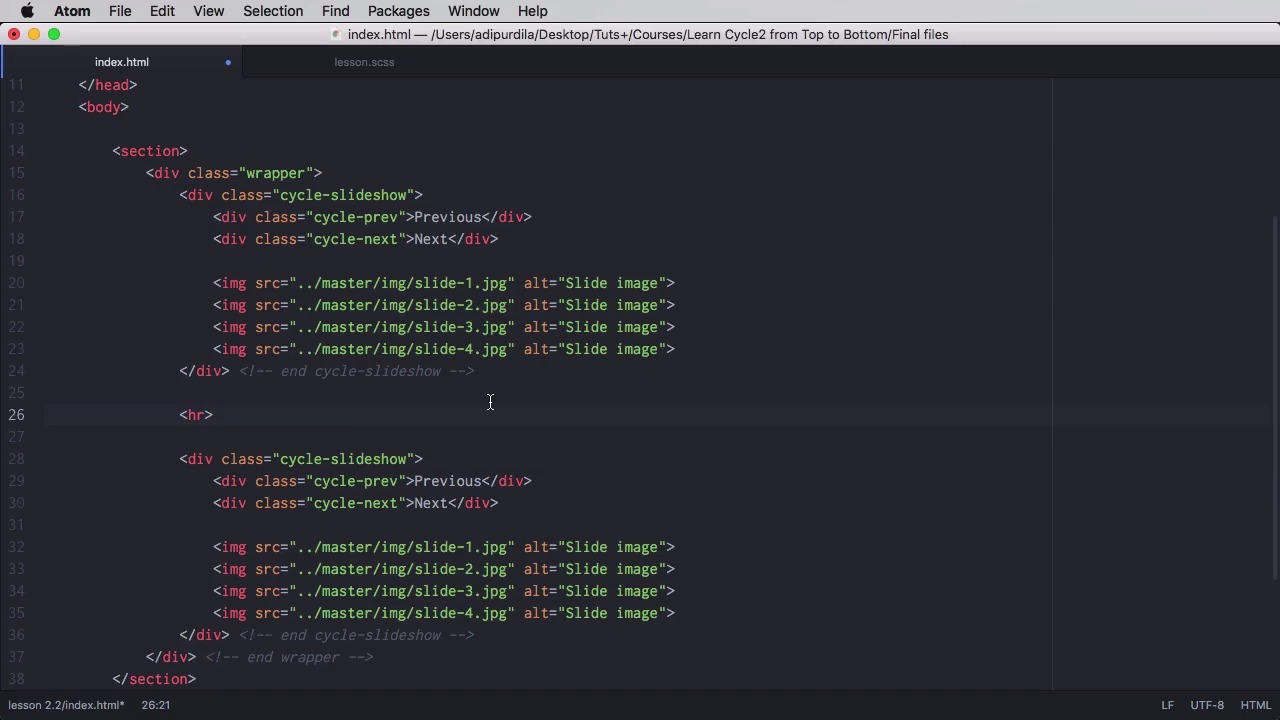
The slideshows you've seen so far are automatic. That means they change the slides automatically. But what if you want a bit more control? What if you want some controls that allow you to change slides by hand, like a Previous or a Next button? Well, that is totally doable, so let's find out how. Just like with captions, the easiest way to add navigation controls is to use an element with a predefined class inside the slideshow element. In our case, the element, or the elements, because there are two of them, will be two divs with the class of cycle-prev and cycle-next, like this. Now if we're gonna take a look here, you'll see that we don't have any content for them and that's because you need to add your own content. So in my case, I'm just gonna say Previous. I'll use text, but you can use whatever you want even icons, and Next. So now, these two are here. I can click on them and the plugin will go either backwards or forwards. Now you can customize these however you want. For example, you can add a background color, padding. You can position them absolutely like I did here. Set the top to 50% and set the margin top to -5m, so they're positioned right in the middle. Set a z-index so they're above all of the images. Cursor, just a hover state here and then put the previous to the left and the next one to the right. So now they look like this, right? There we go. Next, next, next. Of course we can add down states if you want. It's not necessary in our case here. Now you can also create custom navigation controls. So just in case you don't want to use these two classes or the elements inside a slideshow, right, you can create your own. Let's duplicate this and let's add a symbol separator here. So we're gonna delete these two and we're gonna create a control outside. We're gonna say div with a class of controls and inside we're gonna have two anchor tags, one with a class of prev, doesn't matter what you put in the href. It's gonna get overwritten anyway. Let's put an arrow to the left and say Previous, and we're gonna copy this, and we're gonna say Next. We're gonna put an arrow to the right and the class will be next. Now these classes here, prev and next, they don't have to be prev and next, you can put whatever you want in there, right? And what you've got to do now is go to your slideshow and you gotta send data-cycle-prev. And you would do the jQuery selector again and select the class of prev. Do the same for next like that. And now you have the second slideshow which uses these controls. And of course you can create new styles for these. You can, for example, align them to the center. You can maybe add a padding and maybe add a margin to the anchor text. So it looks like this. The cool thing about using this method is that you can put these controls anywhere you want in the page. They don't have to be siblings or descendants of the slideshow. You can put them above if you want, and they're still going to work. And that's how you can use navigation options or previous-next controls to control when your slides will be switched. Now, the transition that you saw in the slideshows so far is a simple fade transition, but there are a few more you can use. So you'll be learning about those and more in the next lesson.


