

- Overview
- Transcript
2.4 Continuous Slideshow
Creating a slideshow which changes slides without any delays is pleasantly easy to do. Let’s find out how.
1.Introduction
1.1Welcome00:34
1.2Why Cycle2?02:22
1.3Plugin Installation and License01:30
1.4A Basic Example03:19
1.5Settings Options04:42
2.Basic Usage
2.1Captions04:58
2.2Using Navigation Controls04:42
2.3Slideshow Effects and Options04:36
2.4Continuous Slideshow03:49
2.5Using Overlays04:32
2.6Using Pagers08:34
2.7Using Non-Image Slides03:34
3.Advanced Usage
3.1Auto-Height06:27
3.2Image Loader05:19
3.3Progressive Loading08:54
4.Optional Plugins
4.1Carousel09:04
4.2Flip and Shuffle05:53
4.3ScrollVert and Tile03:29
4.4Caption2 and Center05:55
4.5Swipe02:12
4.6YouTube05:22
5.The API
5.1Options09:45
5.2Commands07:15
5.3Events04:09
5.4Cycle States and Hash04:51
5.5Template Customization02:27
6.Conclusion
6.1Final Words00:42
2.4 Continuous Slideshow
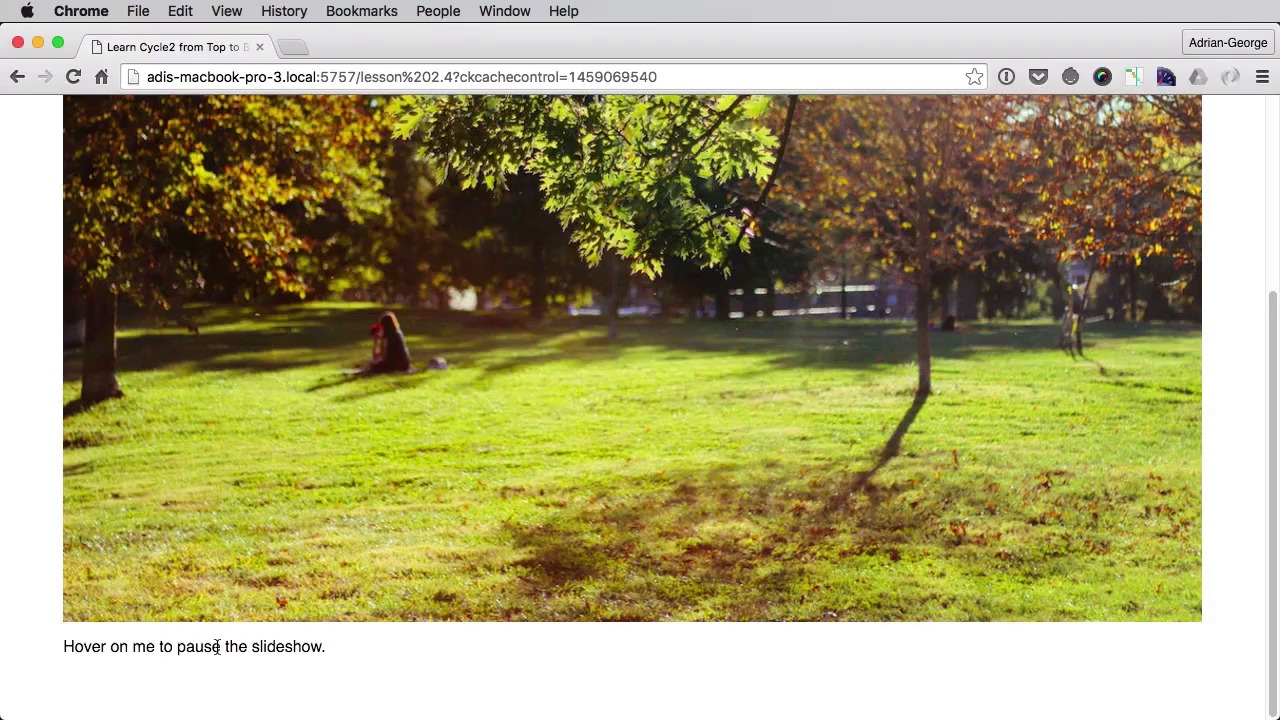
Creating a slide show that changes slides without any kind of delay, is really easy to do. So, let's find out how. Here we have a normal slide show that changes slides automatically using a two thousand milliseconds timeout, but watch what happens if we change this to one. Yeah, as you can see just this just keeps on going. But in order for this to be a continuous slide show you need to set the easing to linear you would say data-cycle-easing linear, and now you have a continuous slideshow. Now of course you need to reduce the speed of this to like maybe four seconds, and you'll get something like this now of course this works best with this effect right here. If you change this to fade, well, you're gonna get something like this, probably not the effect you're looking for. So, best to leave this and scroll horizontally then the other ingredient change the timeout to one, set the easing to linear and set a proper speed. Now what if you want to pause this, well, this is quite easy to do. There is an option called pause on hover. You would set that here, you would say data-cycle-pause-on-hover and you would use a jQuery selector, in our case, let's use a div with an id of pause which we can put anywhere we want. And you can put whatever content you want in it. So right now this is the div, and if I hover on it you'll see that It stops. Now of course it stops between transitions and doesn't stop right in the middle of the of the transition because that's not possible. Now another cool thing about this is the fact that if we take a look at our slide show, and a look right here at the class of cycle slide show. If I pause this you'll see that the slide show now has a class of cycle paused. What does that mean for us well it means we can style it. So it's like will slide show Hugh your target the class of cycle paused, and let's add an after pseudo elements we can set a content. Now of course you can style this however you want. I'm just showing you an example sort of background color, maybe you know black, xero zero zero and maybe with a point nine a passably color white. We'll set a padding 1em let's position this absolutely on the top of the left 1em left 1em, and of course give it a z index so it's above all the other images. So now when I hover on this, now you can actually see it because it's on the top but, lets see if we can catch a glimpse of it there we go. So you saw it right here on the top, and that's how you create a continuous slide show, and also how you can pause on mouse over. Now in the next lesson, you're going to learn something that's very cool for cycle, and that is the ability to use overlays for your slides, those are really easy to create so I will see you in the next lesson.


