

- Overview
- Transcript
4.2 Flip and Shuffle
Just like the plugin in the previous lesson, both Flip and Shuffle are optional so they need to be downloaded separately. Let’s do that and see what they look like.
Related links:
1.Introduction
1.1Welcome00:34
1.2Why Cycle2?02:22
1.3Plugin Installation and License01:30
1.4A Basic Example03:19
1.5Settings Options04:42
2.Basic Usage
2.1Captions04:58
2.2Using Navigation Controls04:42
2.3Slideshow Effects and Options04:36
2.4Continuous Slideshow03:49
2.5Using Overlays04:32
2.6Using Pagers08:34
2.7Using Non-Image Slides03:34
3.Advanced Usage
3.1Auto-Height06:27
3.2Image Loader05:19
3.3Progressive Loading08:54
4.Optional Plugins
4.1Carousel09:04
4.2Flip and Shuffle05:53
4.3ScrollVert and Tile03:29
4.4Caption2 and Center05:55
4.5Swipe02:12
4.6YouTube05:22
5.The API
5.1Options09:45
5.2Commands07:15
5.3Events04:09
5.4Cycle States and Hash04:51
5.5Template Customization02:27
6.Conclusion
6.1Final Words00:42
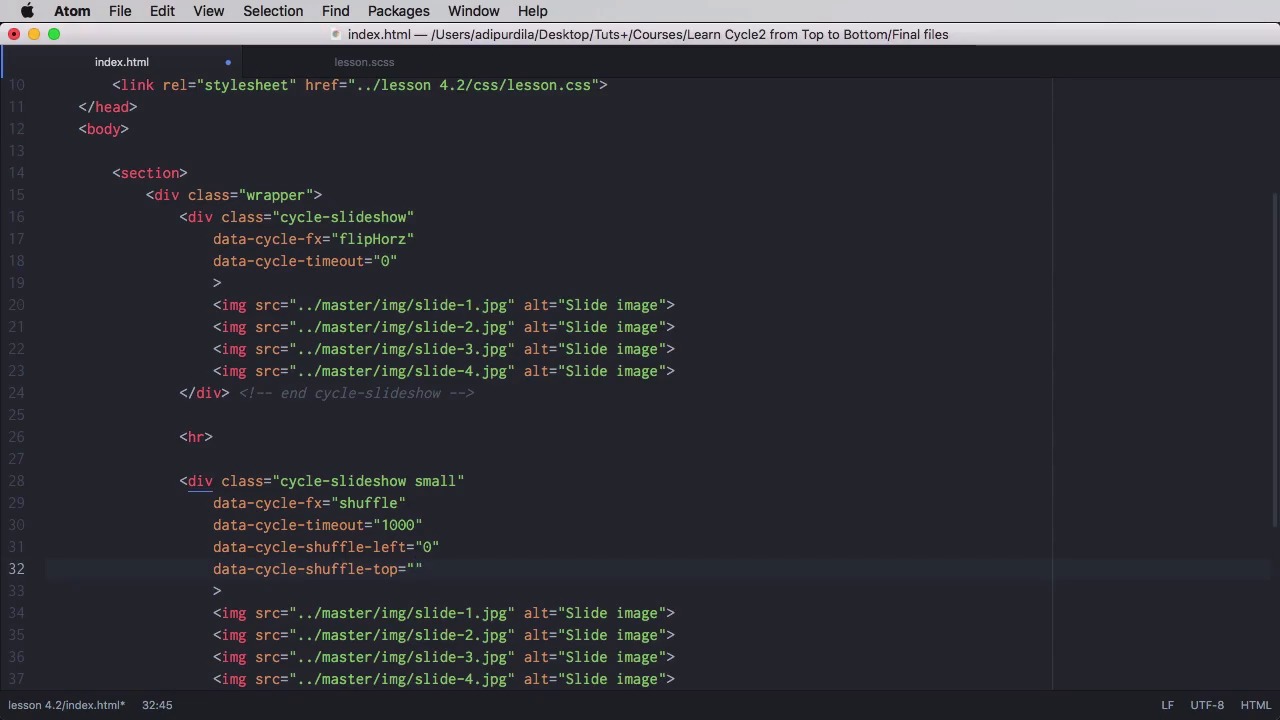
4.2 Flip and Shuffle
Just like the plugin in the previous lesson, Flip and Shuffle are both optional so you need to download them separately. Let's do that and see how they look like. First things first, let's include the JavaScript files that we need for these plugins. Just like in the previous lesson we're getting them from the cycle2-plugins folder inside the master folder. So, here we have a very simple slideshow and let's learn about Flip first. Flip has two versions, horizontal and vertical. So, you will go data-cycle-fx="flip". Let's start with vertical, so flip vert. And our images will change like this. Let's set the timeout to a smaller value here, like 1000, so we can see the effect. Okay, there it is. Or, you can set it to be horizontal and it looks like this. Now, you can also use CSS to control this effect. So, you would set perspective. And, actually, it should say pixels here. So, let's see how it looks. Of course, this is an outrageous effect but you get the idea. This is how you can control how it looks like, and actually that's it for Flip it just has these two options. Now, let's move on to the other one which is Shuffle. Now for Shuffle, I'm gonna duplicate this cycle slide show here and I'm also going to add the class of small, right. So, the fx is gonna be shuffle. And, let's see how it looks like. So, I'm not sure we can actually see this effect very well just yet. But, we're gonna go in here and we're gonna say small. And we're going to set the width per tile to 50%. Yeah, just like that. Let's have a look. Well, let's actually turn off this slider here. So now, you can see it a little bit better, it's like a deck of cards, right. You take the cards and you shuffle them. Well, this is meant to have the exact same effect. Now, for Shuffle there are a few more options. You can set shuffle left and shuffle top. So, let's see what those are doing. If we're gonna set shuffle left, let's say, 0. And shuffle top to, let's say, 150. It will sit at the, Slide goes down 150 pixels. If you set a really big value to like 1500, you're gonna see it go all the way down, right? Now, let's actually set a speed of about 3000, so you can see the effect better on this one. Yeah? So, see how the image just goes down, there it goes, and it comes back up and goes under the image. So, that's how the change is made. Now, if you wanna create more, let's say, a realistic effect, you will want these images to be positioned a bit differently in the top and in the left. And for that, we're going to start by setting the small img here to position absolute. And then, we're gonna set individual CSS properties for each slide, and that can be easily done with the following attributes. data-cycle-slide-css. Let's actually use single quotes here. We're gonna pass in an object like this. We're going to say, "top": "10px" and maybe "left:", oops, "10px", yeah? And, we're gonna do the same to all the other slides. Now, some have positive values, some have negative values, and so on. Now, if we take a look in our page here, you'll notice that the other slides are not visible. And that's because cycle has an option called hide non active, which by default is false, and it's gonna hide the slides that are non active. By default is true, excuse me. So, you need to set that to false. You would say data-cycle-hide-non-active, set that to "false". So now, you'll be able to see all the slides, yeah, which is pretty cool. Now, since we're on this topic, there is another option you can learn about right now and that is called reverse. And reverse will basically make the slideshow go in reverse order. So, let's actually set that here. I'm gonna say data-cycle-reverse, set that to" true", by default it's false. So now, you'll see that the slide show is going in reverse. Yeah, so, it's taking cards, in our case, from the back and bringing them to the top. And that's it for a Flip and Shuffle. Now, we have two more transition plugins called scrollVert and Tile. You'll learn all about them in the next lesson.


