


- Overview
- Transcript
2.3 Slideshow Effects and Options
Let’s talk about slideshow effects because the default fade isn’t the only one you can use. Also, let’s see what other transition parameters you can change.
1.Introduction
1.1Welcome00:34
1.2Why Cycle2?02:22
1.3Plugin Installation and License01:30
1.4A Basic Example03:19
1.5Settings Options04:42
2.Basic Usage
2.1Captions04:58
2.2Using Navigation Controls04:42
2.3Slideshow Effects and Options04:36
2.4Continuous Slideshow03:49
2.5Using Overlays04:32
2.6Using Pagers08:34
2.7Using Non-Image Slides03:34
3.Advanced Usage
3.1Auto-Height06:27
3.2Image Loader05:19
3.3Progressive Loading08:54
4.Optional Plugins
4.1Carousel09:04
4.2Flip and Shuffle05:53
4.3ScrollVert and Tile03:29
4.4Caption2 and Center05:55
4.5Swipe02:12
4.6YouTube05:22
5.The API
5.1Options09:45
5.2Commands07:15
5.3Events04:09
5.4Cycle States and Hash04:51
5.5Template Customization02:27
6.Conclusion
6.1Final Words00:42
2.3 Slideshow Effects and Options
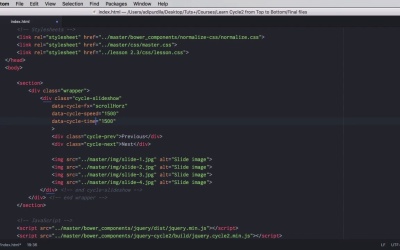
Let's talk about slideshow effects, because the only one you saw so far is a simple fade, but there are a few more. So let's have a look at those, and also learn about what transition parameters you can change. For this example, we're using a simple slideshow with some previous and next controls, just like the one you saw in the previous lesson. Now as I was saying, the fade transition is the default. But there are three more. There is fade out, which is very similar to fade, there is none, and there is scroll horizontally. There are a few more, but those are only accessible via plugin, and we'll talk about them in a future lesson. But for now, let's turn our attention to the ones we can use right now. So the way to change the transition is to set data-cycle-fx. So the fx is the name of the option. And we'll start with fadeOut, first of all, so you can see how it is, and actually it's with a big O there. It's quite similar to fade. It looks like this. The next one is none, and none, of course, means no transition. So the images just change like this. And the next one is scroll horizontally, and that one looks like this. And that's how you change the default transition. Now let's see about some other transition parameters you can change. The first one, you've already seen it. It's called speed, and it's the speed of the transition. So let's put 500, for example, that's half a second. I believe this is actually the default. So if you put 1500 there, we're gonna see a much slower transition. Another option you can change is called timeout. And timeout is the delay between each slide, right? So you would say data-cycle-timeout, and if we set this to about, let's say, 2000, we're gonna have two seconds between slide changes. If we put this to zero, this is very cool, we won't have an automatic slide show any more. So as you can see, this doesn't change the slides unless, of course, we trigger the change ourselves. Now there are two more options I want to show you, and those are related to the manual changes. So if the slide changes automatically, you can control the effects the effect or the transition and the speed for that using the fx and speed options. But you can also control the effects and speed when you change the slides manually, right? So you would do data-cycle-manual-fx. And let's change that to fade, for example. And then data-cycle-manual-speed. Let's set that to 500, right? So right now, let's turn back the automatic slideshow here. The slides now change using 1500 as speed, and use a scroll horizontal transition. But if I change manually, now they fade. So automatic, manual, automatic, manual, there you go. Finally, there is another option here called easing, and you can access it via data-cycle-easing if you include jQuery UI's easing files. We're not gonna do that here, but I thought I'd mention it just in case you need it. That's it for the manual effects. Now in the next lesson, you're gonna learn something very cool. How to create a continuous slideshow, and also how to pause a slideshow when you hover on it. See you there.


