

- Overview
- Transcript
1.5 Settings Options
You can customize the Cycle slideshow by defining certain options. There are two ways of doing that, so let’s begin.
1.Introduction
1.1Welcome00:34
1.2Why Cycle2?02:22
1.3Plugin Installation and License01:30
1.4A Basic Example03:19
1.5Settings Options04:42
2.Basic Usage
2.1Captions04:58
2.2Using Navigation Controls04:42
2.3Slideshow Effects and Options04:36
2.4Continuous Slideshow03:49
2.5Using Overlays04:32
2.6Using Pagers08:34
2.7Using Non-Image Slides03:34
3.Advanced Usage
3.1Auto-Height06:27
3.2Image Loader05:19
3.3Progressive Loading08:54
4.Optional Plugins
4.1Carousel09:04
4.2Flip and Shuffle05:53
4.3ScrollVert and Tile03:29
4.4Caption2 and Center05:55
4.5Swipe02:12
4.6YouTube05:22
5.The API
5.1Options09:45
5.2Commands07:15
5.3Events04:09
5.4Cycle States and Hash04:51
5.5Template Customization02:27
6.Conclusion
6.1Final Words00:42
1.5 Settings Options
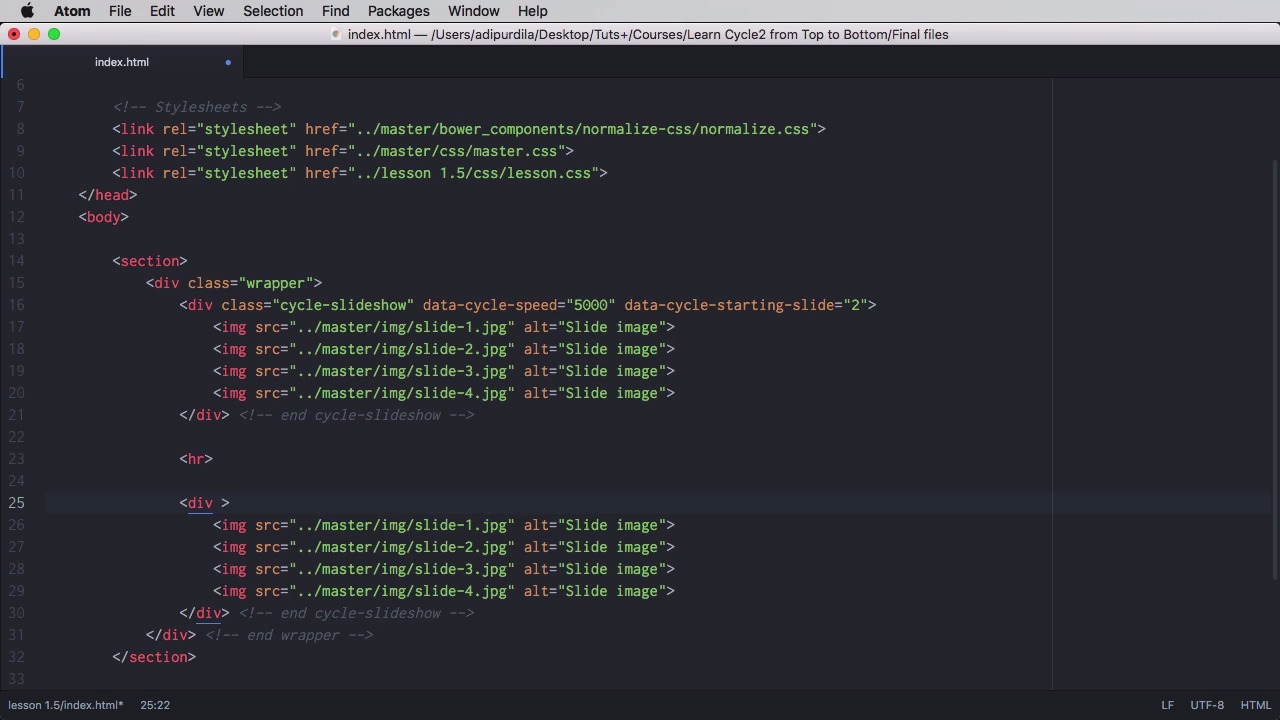
You can customize the Cycle slideshow by setting options. And there are two ways of doing that, so let's find out what those are. The first method of setting options is directly in HTML using bad attributes. So you would go to your slideshow element and you would say, data-cycle- and then followed by the name of the option. So there are lots and lots of options. I believe actually, there are about 40 or 50 options. We'll see about those in a future lesson, but you would take the name of the the option and put it right here. For example, one of the options is called speed and it represents the transition speed. So let's put for example 1,000, that's gonna be equal to one second, so the transition here on the images will now take one second. If I put say five seconds, we're gonna have a really long transition and wait for it, there it is. Okay, now if you have another option, you can just put another data attribute. You'll say data cycle for example, starting a slide like this equals to two and that will cause the plugin to start at slide number two. Now the slide numbering system here is zero based. So this is slide zero, one, two, and three. So currently our slider will start with this image here. So let's see, the first image is now this one with the park. And if we save and refresh, the first image will be the one with the leaves. So that's the first method, and that's how you set the options with Data attributes. The second option is to use JavaScript. And for that I'm just going to duplicate the slide show here. Add an hr there for a little bit of separation and here I'm gonna delete all of these including the cycle slideshow class and I'm just gonna say, an id of for example second slideshow. Now it's gonna have the same exact images but if we take a look now. You're going to see that the second slideshow doesn't really do anything. It's not even a slide show, it's just a list of images. Now to initialize this we're gonna do a script here and since we're using jQuery we're gonna say, function and this equals two documents ready, and we're gonna target the second slide show and we're gonna initialize it like this cycle. Now by doing this you'll see that now our slide show works. So this is another method of initialization just in case you don't have the default class of cycle slideshow. But the cool thing about this is we can pass in options like this. We can pass in an array, so we can pass in the speed for example. Let's say 100 and we can pass in the starting slide. Let's say one. Yeah. So this you can see the slides change really fast and the slide show starts at the image number two. See the difference when you are doing data attributes, you got a prefix them with data cycle. When you're doing it from JavaScript you just need the name of the option. And in case the option has multiple names like this, starting-slide, in the data attribute you would have them separated by hyphens. In JavaScript, you would just do camel case like this. Now we won't go over all of the options right now there are a bunch of them and I think over 40 even. So you'll actually be learning about most of them in the upcoming lessons and at the end will have a dedicated lesson for the remaining ones. Now you know how to get things started. Let's see how we work with some of these options. And we'll start in the next lesson with captions.


